How to make App Store and Google Play screenshots
AppShots is a free, browser-based app store screenshot generator. You pick the store size once, place your app screenshots inside iPhone or Android device frames, write a caption for each one, and export every screenshot as a single zip. The whole flow takes about five minutes, needs no account, and your images never leave your browser.
Step-by-step tutorial
1.Choose the store screenshot size
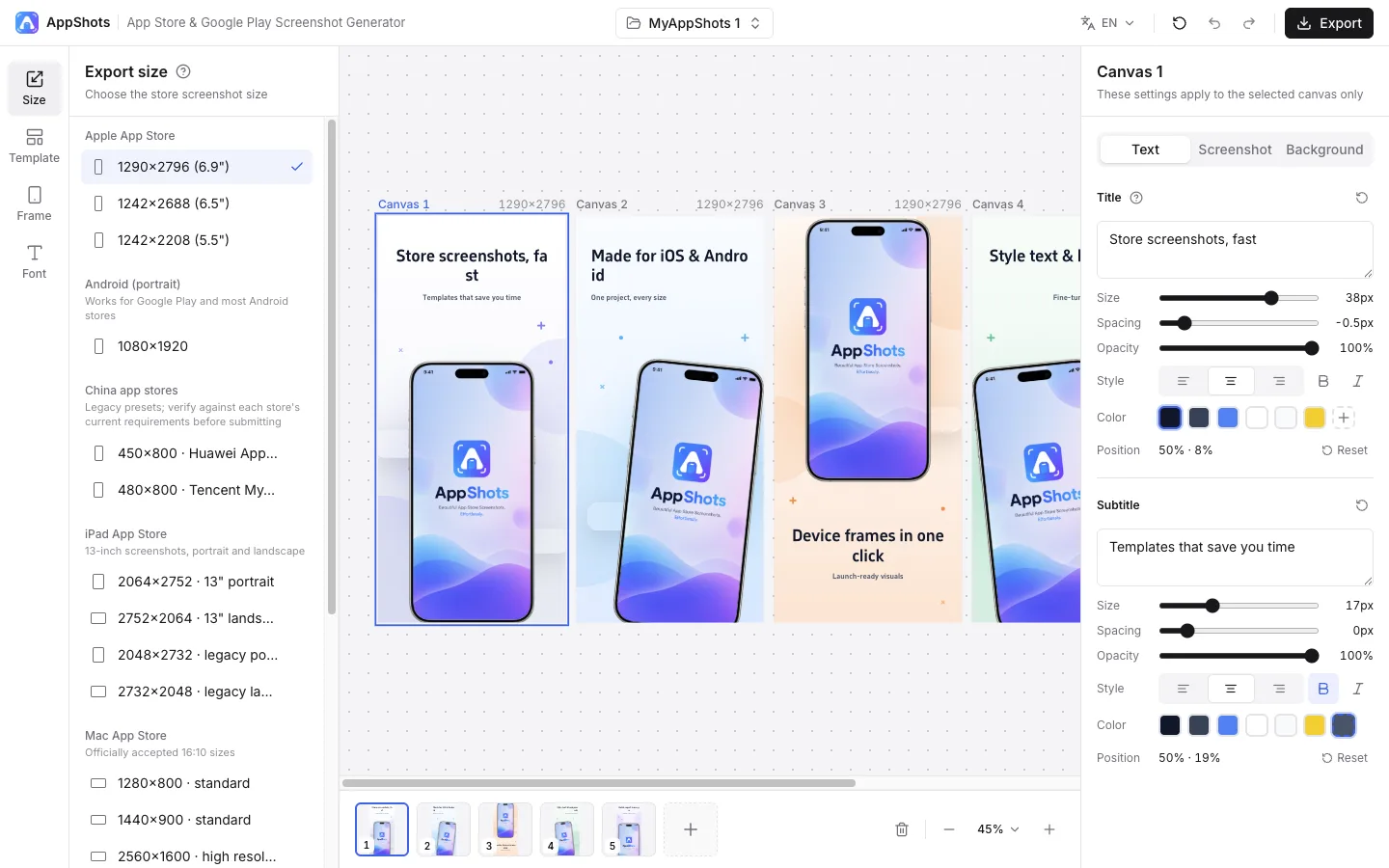
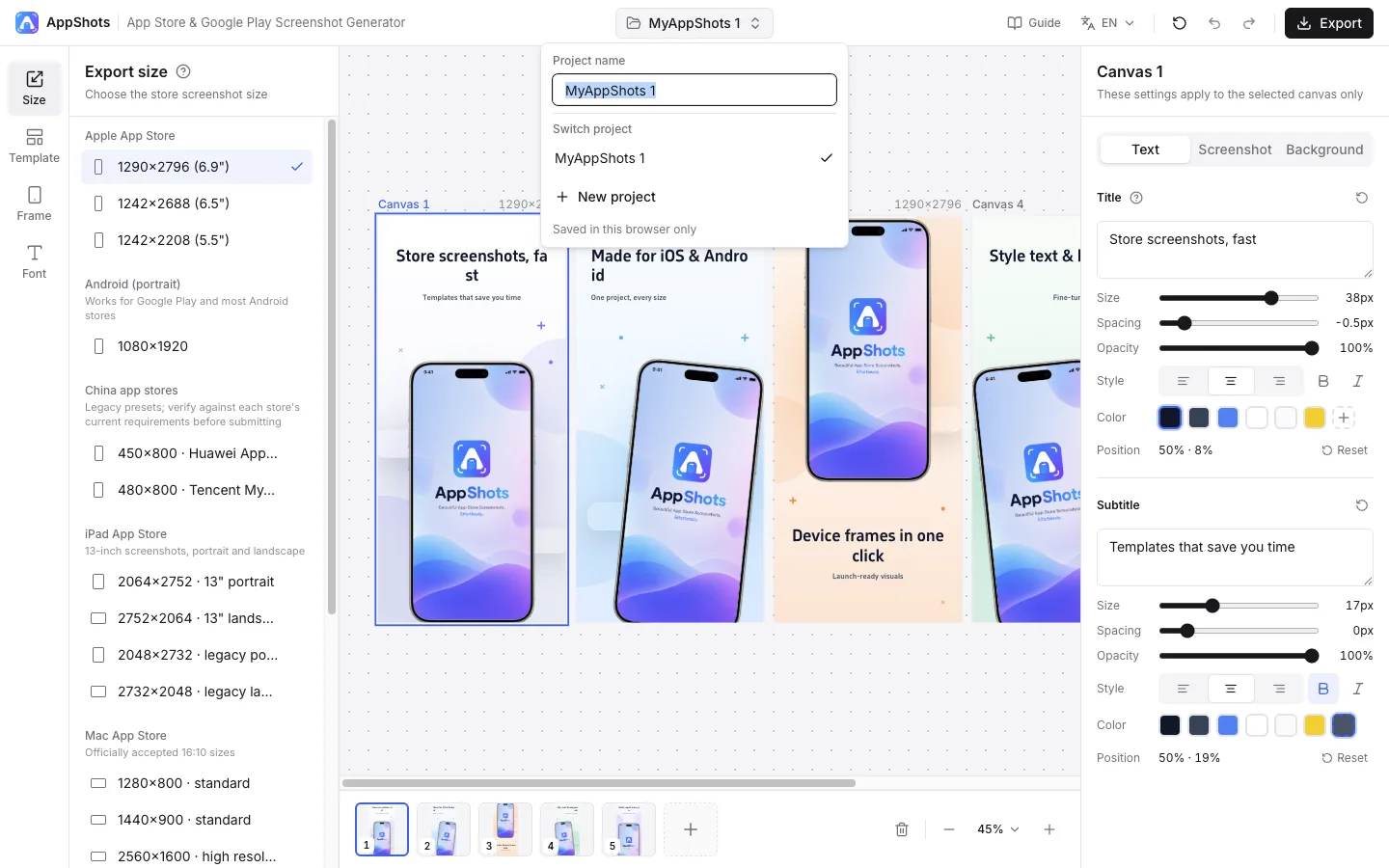
Open the editor and select Size in the left sidebar. Presets are grouped by store: Apple App Store (iPhone 6.9", 6.5" and 5.5"), Android for Google Play and most Android stores, iPad, Mac App Store, Microsoft Store, Chrome Web Store, plus legacy presets for Huawei AppGallery and Tencent MyApp.
The size applies to every screenshot in the project, so you only choose it once. The default, 1290×2796, is one of the accepted 6.9-inch iPhone sizes in App Store Connect.
2.Pick a layout template
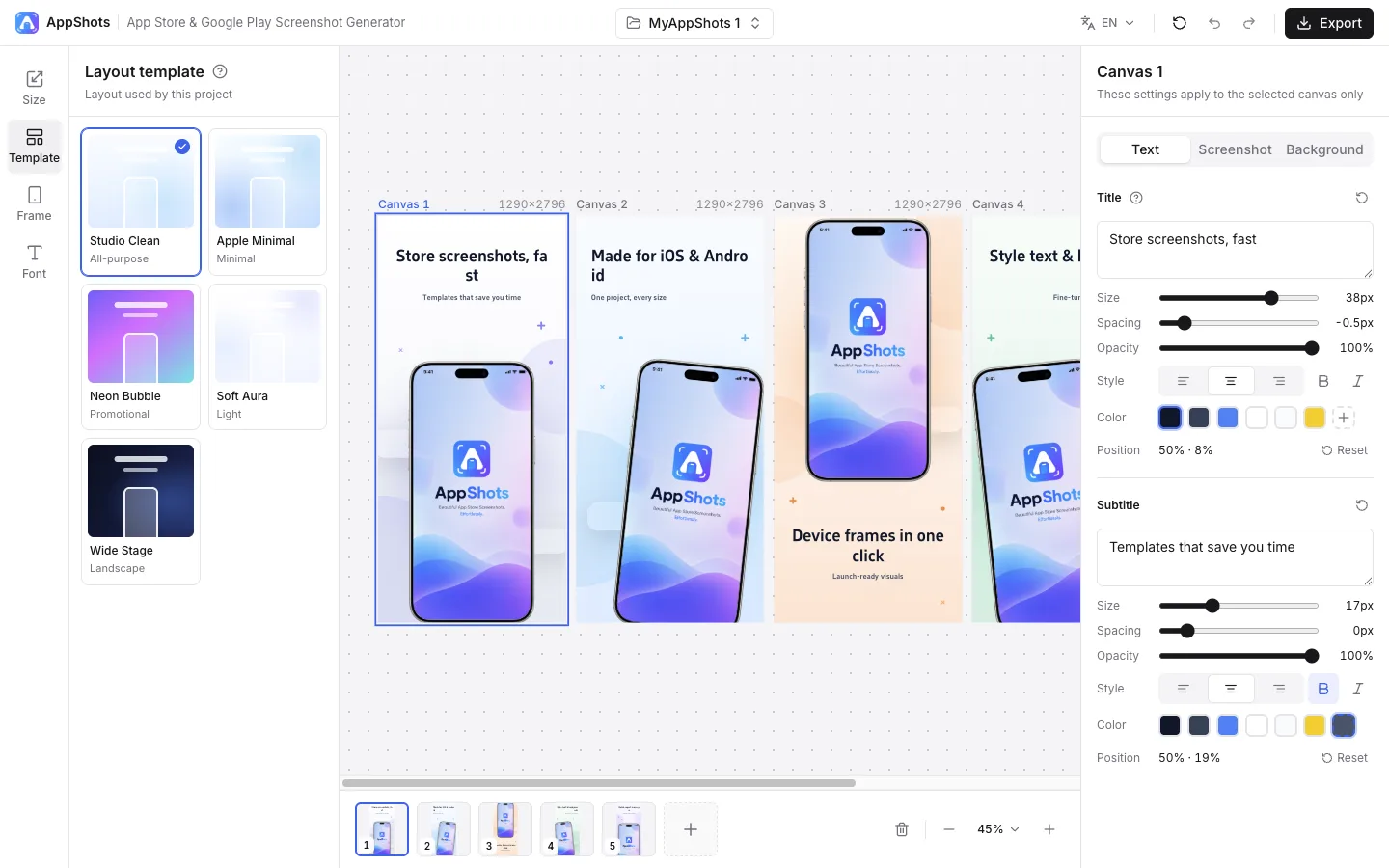
Select Template to choose the overall layout: Studio Clean (all-purpose), Apple Minimal, Neon Bubble (promotional), Soft Aura (light) or Wide Stage (landscape).
Switching templates updates the layout, background and decorations of every screenshot at once, and keeps the app screenshots you have already uploaded.
3.Add a device frame
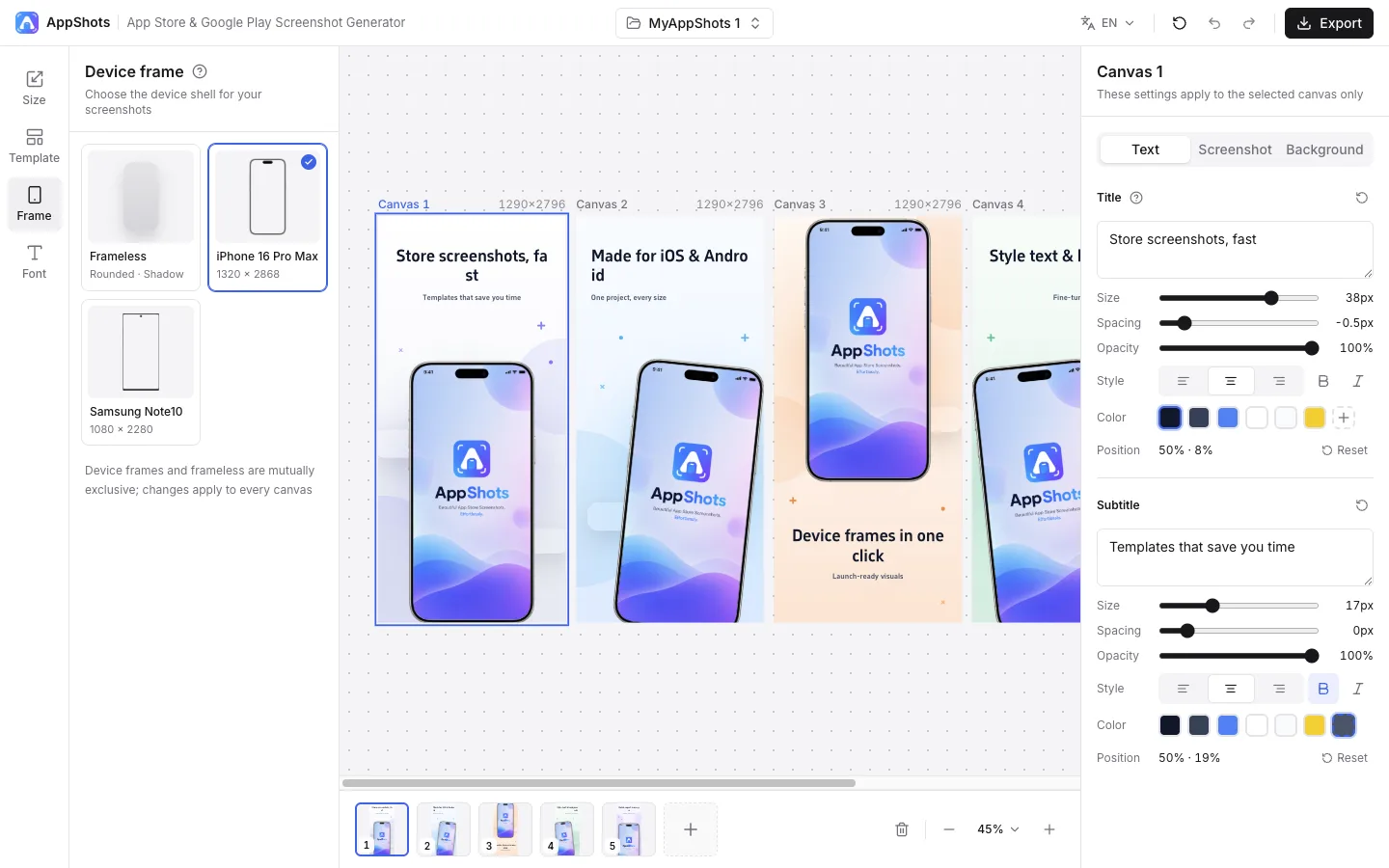
Select Frame to wrap your screenshots in an iPhone 16 Pro Max or Samsung Note10 device mockup, or choose Frameless for a rounded card with a soft shadow.
The frame applies to every screenshot in the project, so the whole set stays visually consistent.
4.Write the title and subtitle
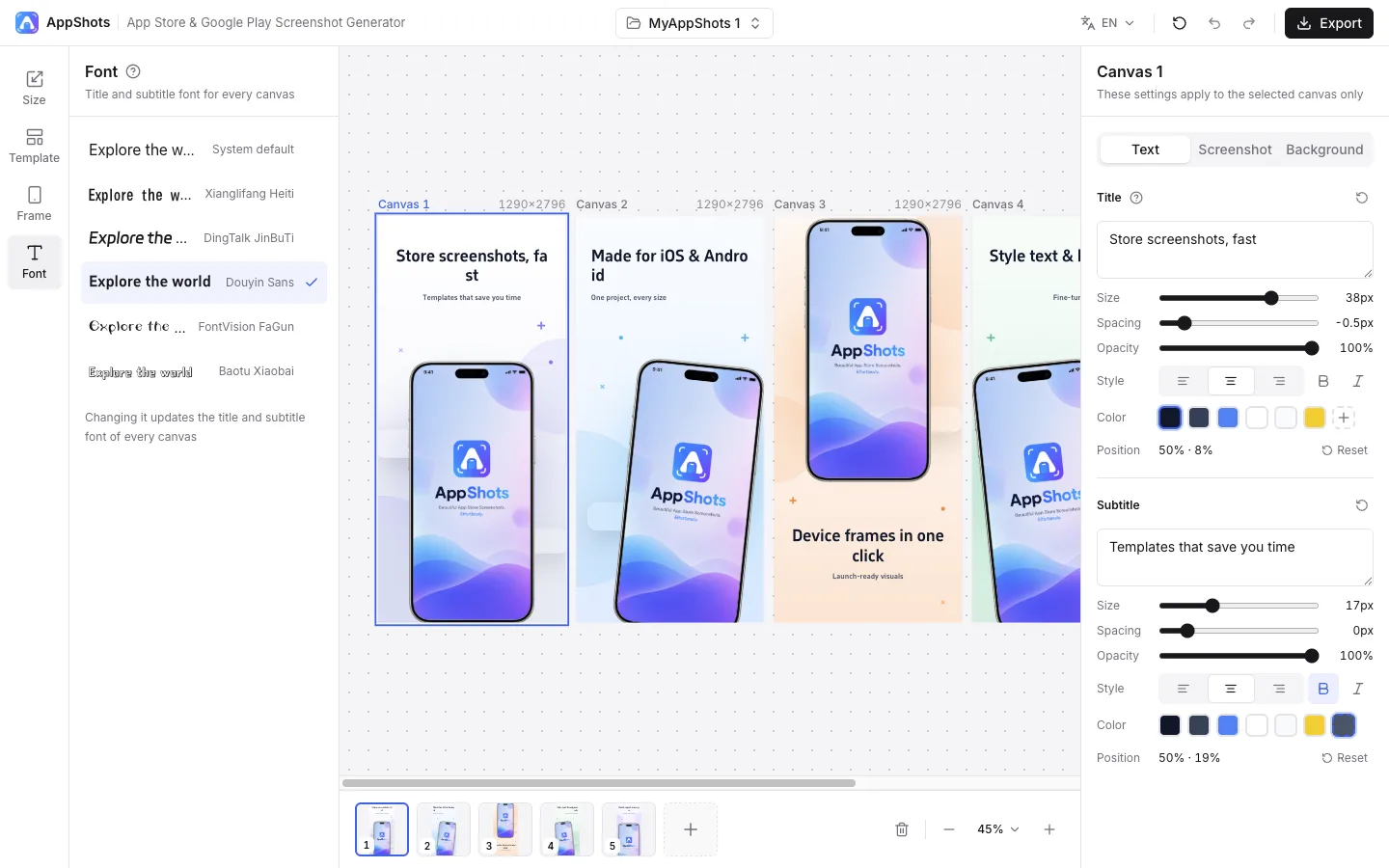
Click a screenshot on the canvas, then use the Text tab on the right to edit its title and subtitle. Press Enter inside the field to add a line break. You can adjust size, letter spacing, opacity, alignment, bold, italic and color for each line.
Select Font in the left sidebar to change the typeface for all titles and subtitles at once.
5.Upload your app screenshot
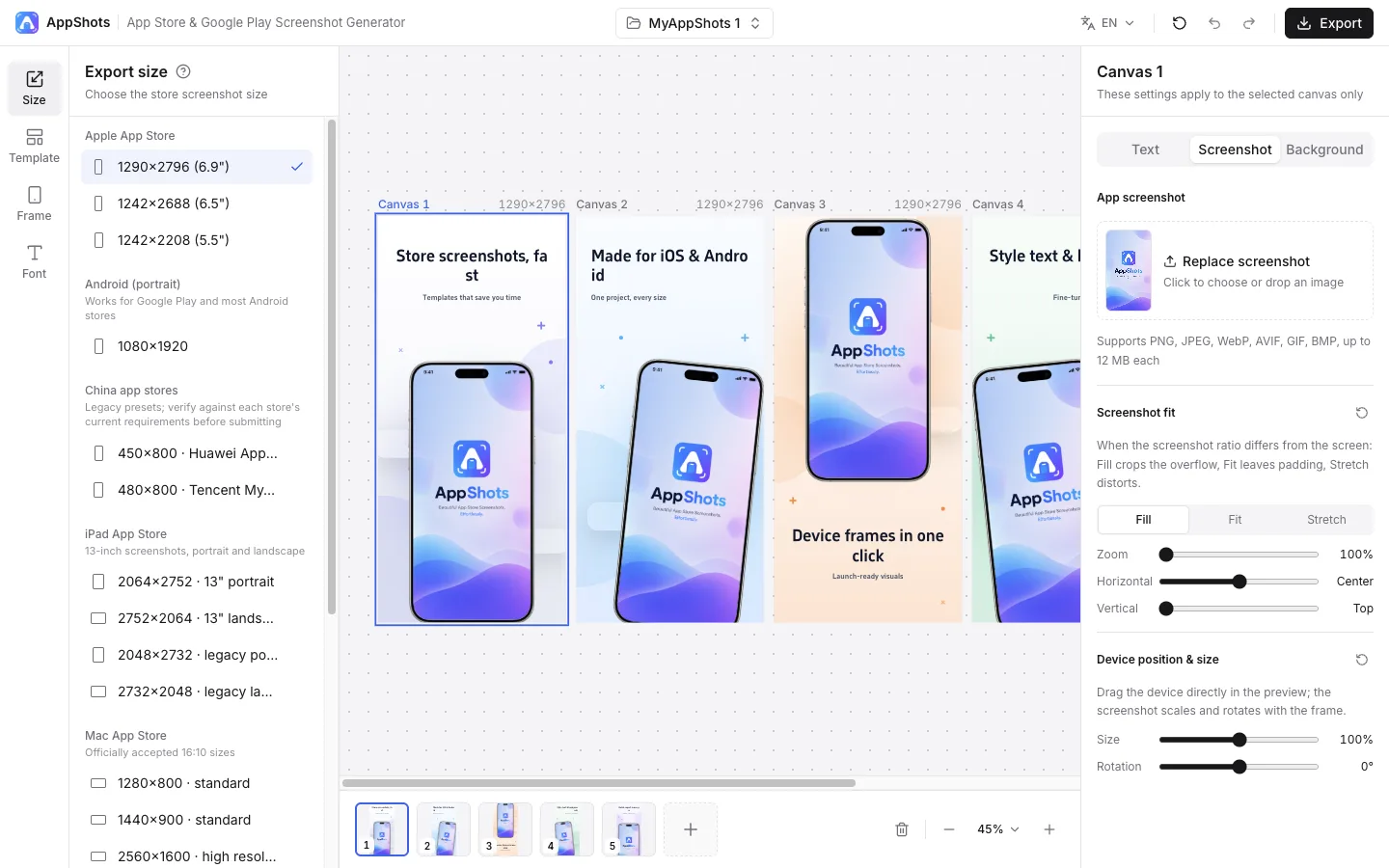
Open the Screenshot tab and click or drop an image to replace the demo screenshot. PNG, JPEG, WebP, AVIF, GIF and BMP files up to 12 MB are supported.
If your screenshot ratio differs from the device screen, choose Fill (crops the overflow), Fit (leaves padding) or Stretch, then fine-tune zoom and position. Drag the device in the preview to move it, and use the size and rotation sliders to tilt it.
6.Set the background
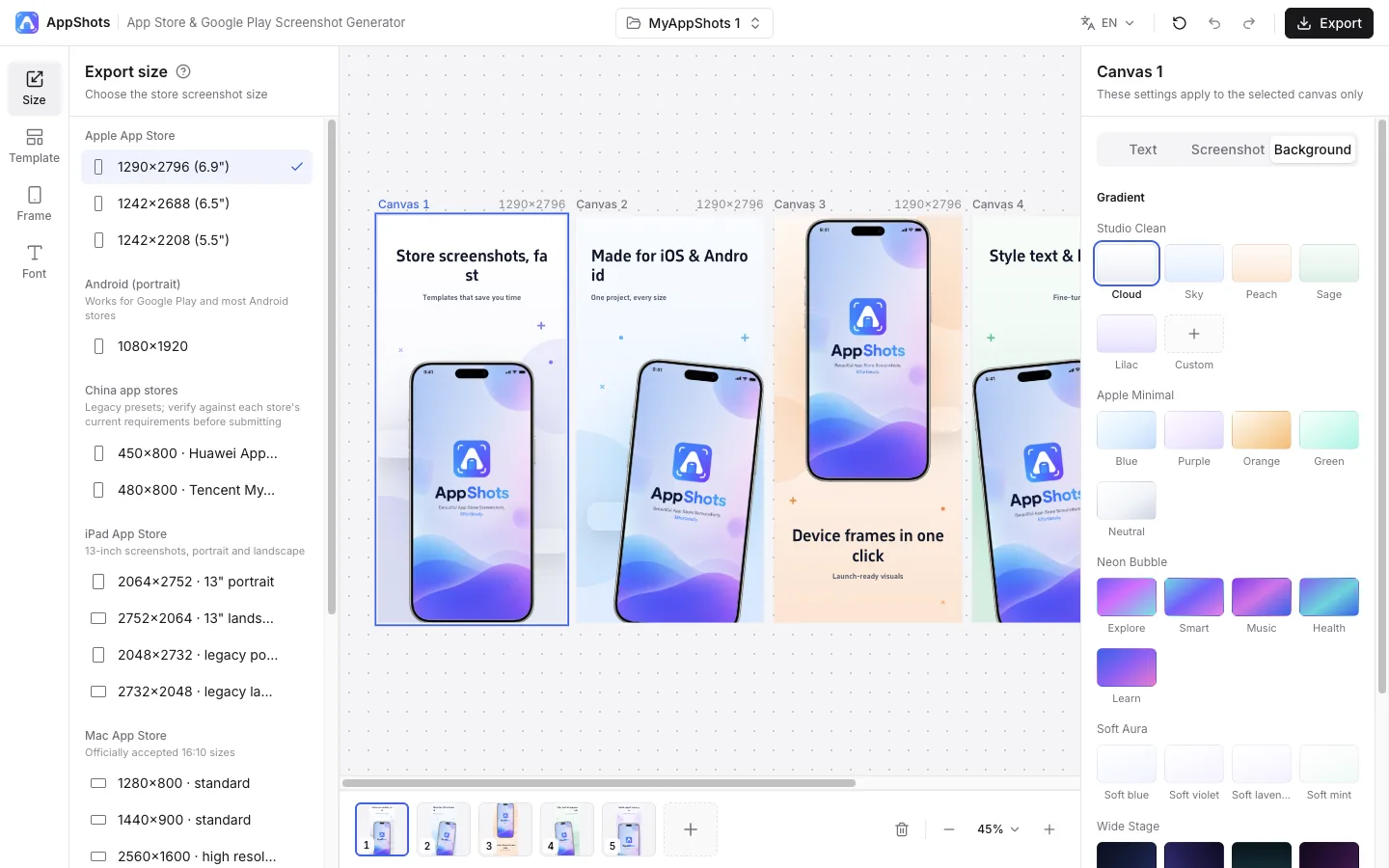
Open the Background tab to pick a gradient preset, build a custom gradient with start, middle and end colors and an angle, or use a solid color.
Backgrounds apply to the selected screenshot only, so each screenshot can have its own color. On dark backgrounds the text switches to a light color to stay readable.
7.Add more screenshots and export a zip
Use the thumbnail bar under the canvas to add screenshots (up to 8 per project), switch between them or delete one.
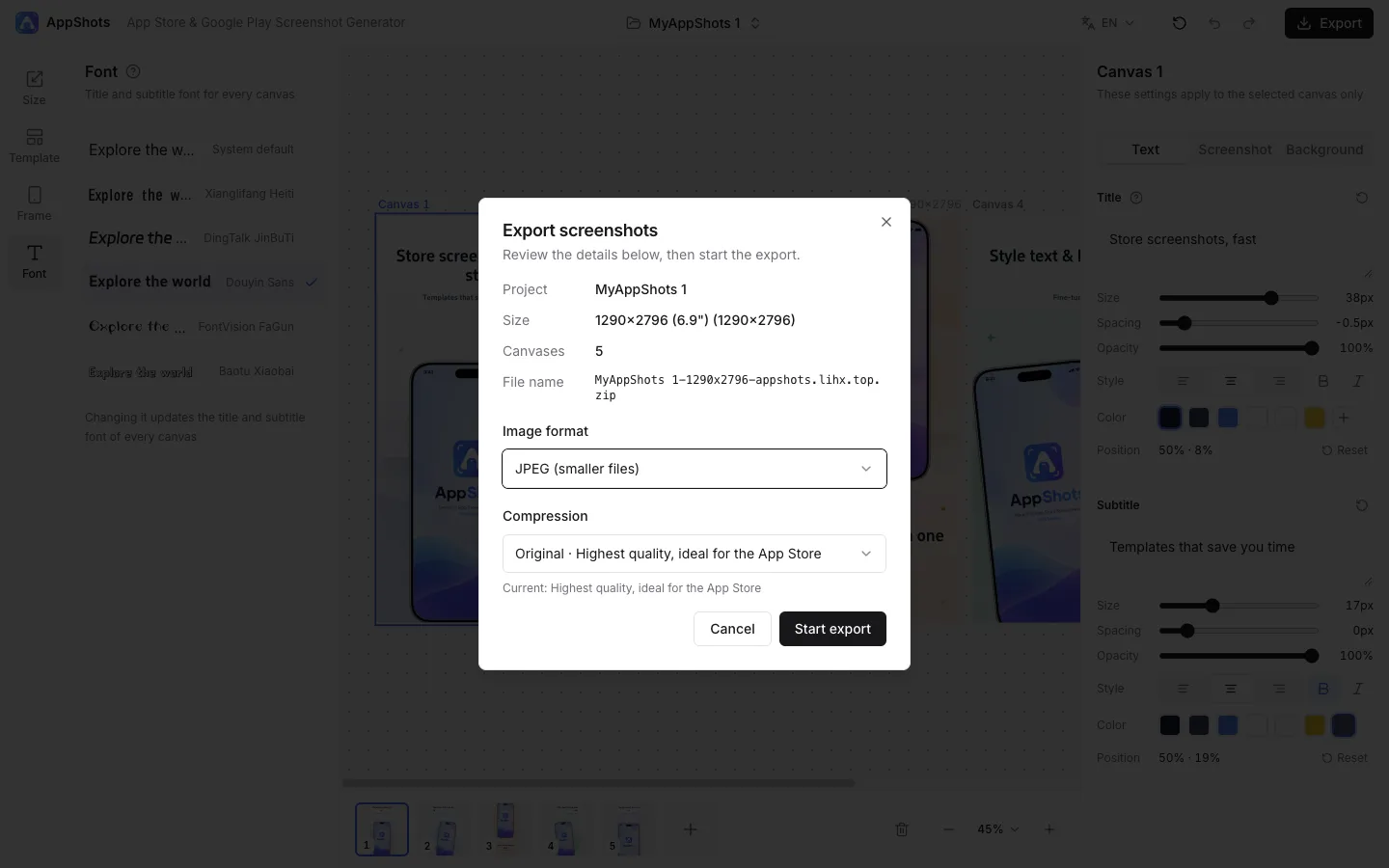
When you are done, click Export. Review the project name, size and number of screenshots, choose JPEG for smaller files or PNG for lossless quality, pick a compression level, and start the export. All screenshots download as one zip file.
Manage multiple projects with auto-save
Click the project name at the top of the editor to rename the current project, switch to another one or create a new project. Each project keeps its own size, template, device frame, font, text and screenshots, so you can prepare several apps, or the App Store and Android versions of the same app, side by side. Deleting a project from the list does not affect the others.
Your work is saved automatically in this browser as you edit, so you can close the tab and pick up where you left off. Projects are stored only in this browser: they do not sync across devices or browsers, and clearing the site data removes them. Undo and redo work within the current session.
Supported screenshot sizes
These are the export sizes built into AppShots. Store requirements change over time, so check the official specifications before you submit.
| Store | Export sizes (pixels) |
|---|---|
| Apple App Store | 1290×2796 (6.9") / 1242×2688 (6.5") / 1242×2208 (5.5") |
| Android (portrait)Works for Google Play and most Android stores | 1080×1920 |
| China app storesLegacy presets; verify against each store's current requirements before submitting | 450×800 · Huawei AppGallery / 480×800 · Tencent MyApp |
| iPad App Store13-inch screenshots, portrait and landscape | 2064×2752 · 13" portrait / 2752×2064 · 13" landscape / 2048×2732 · legacy portrait / 2732×2048 · legacy landscape |
| Mac App StoreOfficially accepted 16:10 sizes | 1280×800 · standard / 1440×900 · standard / 2560×1600 · high resolution / 2880×1800 · high resolution |
| Microsoft StoreDesktop screenshots at least 1366×768; submit as PNG | 1366×768 · minimum / 1920×1080 · 1080p / 3840×2160 · 4K |
| Chrome Web Store1280×800 recommended, 640×400 supported | 1280×800 · recommended / 640×400 · supported |
Screenshot requirements for Huawei, Xiaomi, OPPO and vivo
Chinese Android app stores have their own screenshot rules, and several of them restrict which phone frames can appear in screenshots. The table below is taken from each store's official developer documentation.
| Store | Screenshot size | Format and file size | Count | Device frame rules |
|---|---|---|---|---|
| Huawei AppGallery (Android APK, phone) | 450×800 portrait or 800×450 landscape (HarmonyOS phone apps: 720×1280 or 1280×720) | PNG / JPG / JPEG up to 2 MB each (HarmonyOS: up to 5 MB) | 3–5 | Not specified on the asset specification page |
| OPPO App Market | 1080×1920; all screenshots the same size and orientation | JPG / PNG, under 1 MB each | 3–5 | No other brands' phones as frames; remove notification icons from the status bar |
| vivo App Store | 1080×1920; all portrait or all landscape | JPG / PNG, up to 2 MB each | 3–5 | No photos or frames of non-Android devices, such as iPhone |
| Xiaomi GetApps | Follow the upload page in the developer console | — | — | Phone frames must be Xiaomi devices; no iPhone or other brands; no unrelated third-party icons in the status bar |
How to prepare them in AppShots
- Choose Android (portrait) 1080×1920 for OPPO, vivo and most Android stores. For a Huawei AppGallery APK app, choose the 450×800 Huawei AppGallery preset.
- If a store rejects your screenshots because of the device frame, switch to Frameless in the Frame panel and export again.
- Export as JPEG with compression, then check that each file is under the store's limit (1 MB for OPPO, 2 MB for vivo and Huawei APK apps) before uploading.
- Make sure the app screenshots you upload do not show unrelated notification icons in the status bar.
Frequently asked questions
Is AppShots free?
Yes. AppShots is free to use in your browser, with no sign-up. You can create screenshots for every supported store and export them as a zip.
Are my screenshots uploaded to a server?
No. Images are processed in your browser, and your projects are saved in this browser's local storage. Clearing your browser's site data removes them.
What size should App Store screenshots be?
For iPhone, App Store Connect accepts 1290×2796 pixels in portrait as a 6.9-inch screenshot size, and it is the default in AppShots. AppShots also exports 1242×2688 (6.5") and 1242×2208 (5.5"), and iPad 13-inch at 2064×2752.
What size should Google Play screenshots be?
Google Play accepts JPEG or 24-bit PNG screenshots between 320 and 3840 pixels, where the long side is no more than twice the short side. AppShots exports Android screenshots at 1080×1920, which fits these rules.
What if Huawei, Xiaomi, OPPO or vivo rejects my screenshots because of the phone frame?
Some stores restrict phone frames in screenshots: vivo does not allow non-Android devices such as iPhone, Xiaomi only allows Xiaomi phone frames, and OPPO does not allow other brands' phones as frames. If your screenshots are rejected for this reason, switch to Frameless in AppShots and export again.
Can I manage screenshots for several apps?
Yes. Create a separate project for each app from the project menu at the top of the editor. Every project keeps its own size, template, frame, text and screenshots, and all of them are saved automatically in your browser.
How many screenshots can I export at once?
Each project holds up to 8 screenshots, and all of them are exported together in a single zip file.
Should I export JPEG or PNG?
JPEG gives smaller files and works for most stores. PNG is lossless; use it when a store asks for PNG, such as Microsoft Store desktop screenshots.
Official specifications
- Apple: App Store Connect screenshot specifications
- Google: Add preview assets to showcase your app
- Huawei AppGallery Connect: app asset specifications (Chinese)
- OPPO Open Platform: publishing an app (Chinese)
- vivo Open Platform: app review guidelines, section 2.8 (Chinese)
- Xiaomi Open Platform: screenshot, splash and onboarding design rules (Chinese)
Ready to make your screenshots?
Open the editor, and your project is saved automatically in this browser as you work.